

How to get help with WreckMP
Step 1: Check the common mistakes video
- Before creating a bug report or a support ticket, please make sure your issue isn't already resolved in one of the following videos:

Common mistakes when installing

Tips & tricks for smooth gameplay
- If none of the above resolve your issue, please read further in this guide
Step 2: Join the discord server and verify yourself
- WreckMP support tickets and bug reports are handled through our discord server.
Join the server using this link.
- Once you join, you will need to verify yourself by going into the #verify channel
and sending a message saying "verify" (without the quotes)
- If you did it correctly, you should now gain access to the whole server
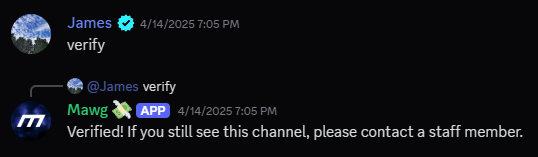
Example of passing the verification process
Step 3: Open a support ticket
- To open a support ticket, locate the #wreckmp-support channel
and click Report a bug.
- A new channel labeled #unresolved-xxx will be created and you will be mentioned in it.
(The xxx in the channel name will be replaced by a report number)
- Open the channel and select what type of report you want to create;
Use In-game bug with WreckMP if some error prevented you from playing, Bug with WreckMP launcher
if something broke with the launcher, and General support if you need help with something else, such as installing problem etc.
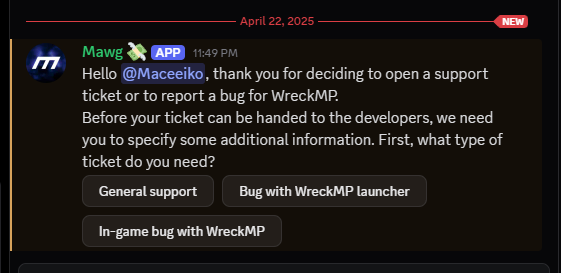
Report type selector
Step 4: Fill in all details
- This is the most important step, if you actually want staff to help you
resolve your issue, you need to fill all the details and finish your report
- Pay attention to what the bot is asking for, and write the answers as messages. You will be asked for a title
of your report, which means you'll just summarize what is your issue about, steps to recreate, if you are reporting a bug,
which essentially just means what did you do to make the error appear (how we can make it appear too) and
if you are reporting a bug with WreckMP, you will be asked for 3 files from game directory, which you
just have to upload one by one
- To open game directory, open Steam, go on My Summer Car page in your library,
and open its properties via the cogwheel button. Once you're there, in the installed files tab you can click Browse
to open the game directory in explorer
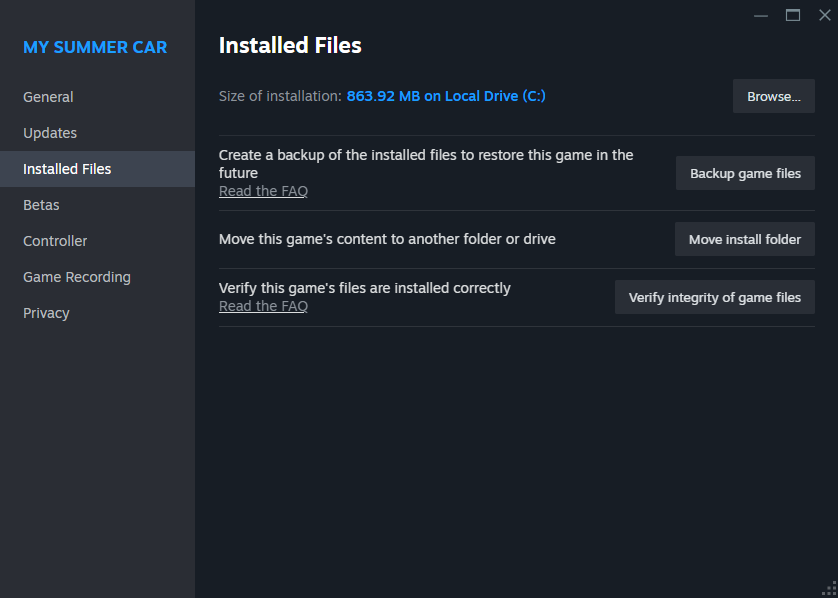
In the first row, click Browse to open game directory
Step 5: Wait for response from our support team
- Once you have successfully finished the creation process of the report, it should look similar
to the image below
- Now, you have to wait until our staff members get to your report to assist you on resolving your issue.
- Please do NOT ping random staff members or roles in an attempt to get your issue resolved faster! Keep on mind
that this behaviour will only make staff less offering and won't bring you any benefits
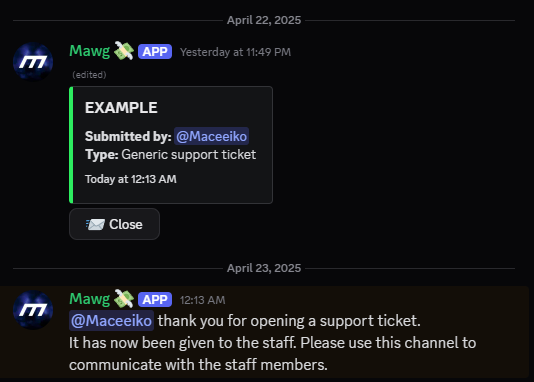
Example of successfully created report